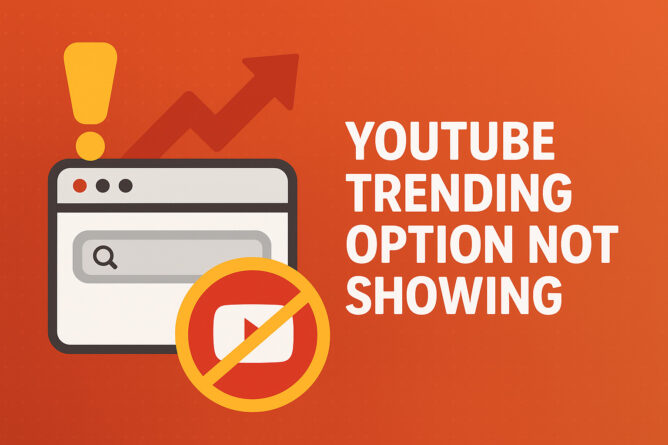
It’s frustrating, isn’t it? You settle in, ready to see what’s hot on the platform, only to find that familiar “Trending” tab—poof—it’s vanished. You refresh the page, maybe even restart the app, but the YouTube Trending Option Not Showing still plagues your viewing experience.
This isn’t just an inconvenience; for content creators and those who keep a pulse on digital culture, it’s a genuine roadblock. We’ve all been there, clicking around, wondering if YouTube has quietly changed something fundamental again. Rest assured, this isn’t usually a sign that your account is busted or that the feature is gone forever.
More often than not, it’s a small setting hiccup, a regional setting adjustment, or perhaps just a glitch in the matrix of your browser cache. Let’s walk through precisely why this might be happening and, more importantly, how you can get that crucial page back where it belongs so you can keep tabs on what’s driving the conversation.
Troubleshooting the Missing YouTube Trending Tab
When the YouTube Trending Option Not Showing, the initial reaction is often panic or confusion. However, professional troubleshooting demands a methodical approach. We need to isolate the variables. Is this happening across all your devices, or just the one you’re using right now?
Is it specific to your mobile app or your desktop browser? Understanding the scope of the issue dictates the necessary fix. Sometimes, what appears to be a universal problem is actually localized to a single, easily correctable setting or software conflict. Before we get into the nitty-gritty, confirm that your YouTube app or browser is fully updated. Outdated software often leads to bizarre display errors, and honestly, keeping things current is just good digital hygiene.
Checking Regional Settings and Content Filters
One of the most frequent, yet overlooked, reasons the Trending page seems absent is due to geographic restrictions or user-set filters. YouTube tailors content based heavily on location, and if your region setting gets skewed—perhaps through a VPN, or if YouTube misidentifies your IP address—the algorithm might default to showing you content relevant only to a very narrow, localized selection, sometimes burying the standard ‘Trending’ interface.
Here’s a quick checklist for verifying your location settings on the desktop site:
- Scroll to the absolute bottom of the YouTube homepage.
- Look for the location indicator (it usually shows your current country).
- Click on the location name and select the correct country or region.
- Reload the page and check if the Trending tab reappears in the left-hand navigation menu.
If you’re on mobile, this setting is usually buried deeper within the main Settings menu under Account or General settings, depending on your OS. Ensure that no restrictive content filters are accidentally toggled on, as these can sometimes suppress high-traffic, potentially volatile content streams like Trending.
Browser Cache and Cookie Interference
It’s almost boring to suggest clearing the cache, but genuinely, it resolves an astonishing number of interface display issues. Your browser stores data locally to speed up loading times, but sometimes this stored data becomes corrupted or conflicts with newer site updates from YouTube. This corruption can manifest in peculiar ways, such as failing to load navigation elements—like the YouTube Trending Option Not Showing—correctly.
For persistent issues on a desktop computer, try this sequence:
- Hard Refresh: On Windows/Linux, press Ctrl + F5. On Mac, use Cmd + Shift + R. This forces the browser to bypass cached files and fetch everything fresh.
- Incognito/Private Mode: Open YouTube in a private browsing window. If the Trending tab is present there, you have confirmed that an extension or your standard cache/cookies are the culprits.
- Clear Specific Site Data: If the private mode test confirms local data issues, go into your browser settings and specifically clear cookies and cache only for youtube.com. Avoid clearing everything globally unless you’re prepared to log back into every site you use.
Mobile App Specific Solutions
The mobile experience is often disconnected from the desktop one. If you’re experiencing the YouTube Trending Option Not Showing on your phone or tablet, the troubleshooting path changes slightly. App settings are distinct from browser settings.
The primary fixes here involve app data management:
- Force Stop the Application: Navigate to your device’s Application Manager (Android) or swipe up from the recent apps screen and firmly close the YouTube application. Then restart it.
- Check for Updates (Again): Go to the Google Play Store or Apple App Store and confirm there isn’t a pending update for YouTube itself. Developers push fixes for navigation bugs rapidly.
- Reinstall the App: As a slightly more drastic measure, uninstalling and reinstalling the app cleans out all local application data, providing a fresh slate. Just be mindful that you might have to re-download any offline playlists you had saved.
Investigating Account-Based Issues
In exceedingly rare cases, the issue might be tethered to your specific Google account profile, though YouTube rarely hides system-level navigation features based on user behavior alone. If you’ve tried everything above across multiple devices and browsers, the next logical step is account verification.
Can you log out, log back in, and see if the tab returns? If you have access to a secondary YouTube account, check that one. If the secondary account can see the Trending page but yours cannot, it suggests a very specific, perhaps temporary, profile flag on YouTube’s end. In that scenario, the only viable path forward is usually waiting a day or two, or contacting YouTube support directly, explaining clearly that the standard navigation element is absent, even after clearing local data caches. We’re talking about an interface issue here, not content eligibility, so be precise in your communication.
So, what does this all boil down to when you’re staring at a blank spot where the navigation should be? It’s usually something remarkably simple, often related to caching or localization that the system just hasn’t reconciled properly. Don’t let a missing digital signpost derail your workflow; a little systematic checking usually brings that sought-after page right back where it belongs. Hopefully, following these steps resolves why the YouTube Trending Option Not Showing on your screen today.